
TAGARNO microscopes software





Why choose a digital microscope with built-in software?
To achieve an objective and standardised analysis process, implementing a digital microscope with intuitive and intelligent software is a highly practical solution. Choosing software that meets all operational requirements not only reduces subjectivity, but also enables highly accurate and comparable analysis results.
At the core of a digital microscope is an integrated computer that allows the software to be updated. Thanks to software updates, the microscope can gain new features and applications based on technologies that may not have been available at the time of purchase. This flexibility means that many users do not need to replace their digital microscope simply because it does not currently support certain processes, as future software updates may expand its capabilities.
Software for TAGARNO microscopes
A key advantage of a digital microscope is the ability to use applications as part of the inspection process. Such applications help create faster and/or more accurate workflows, allowing operators to work more efficiently.
Examples include three of the highest-rated applications for electronics manufacturing companies: IMAGE COMPARISON, TAGARNO MEASUREMENT and the DXF Overlay app.
TAGARNO IMAGE COMPARISON software
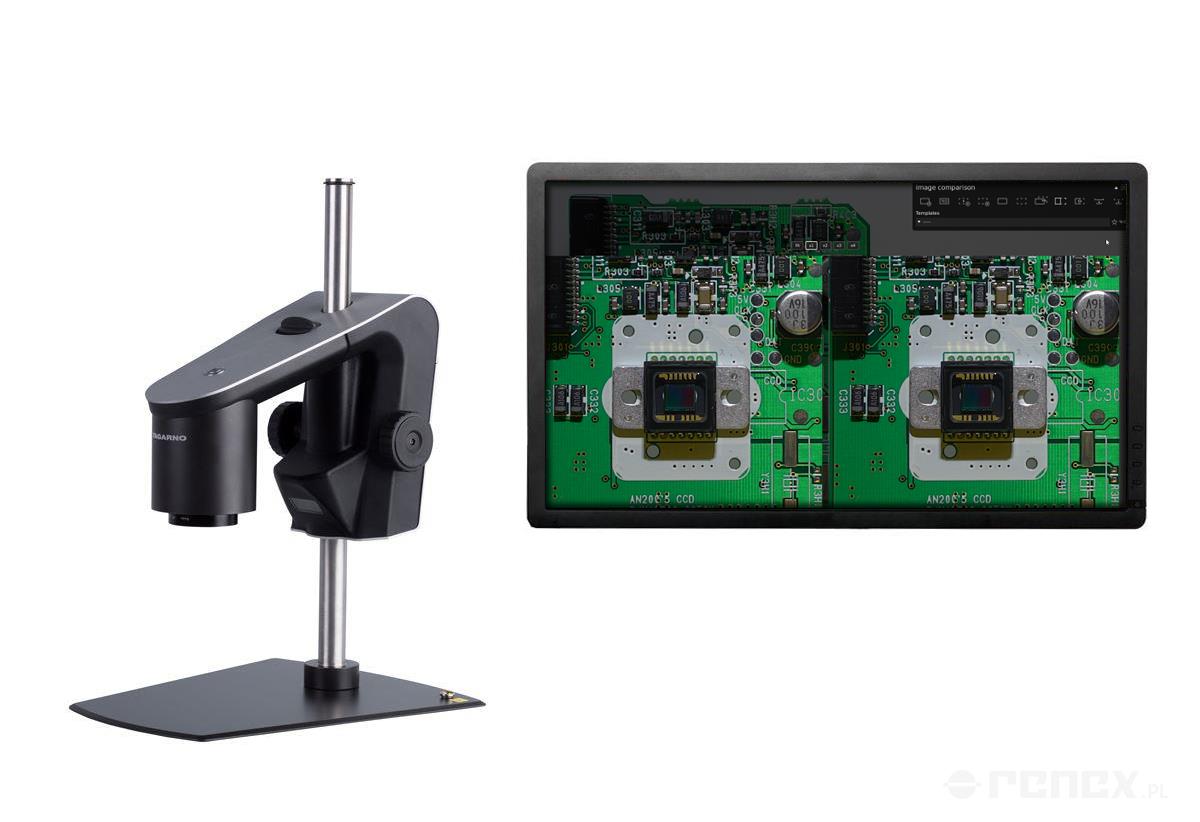
With IMAGE COMPARISON, an application that makes it easy to compare two images, it becomes simple to identify deviations between the current sample and the reference sample previously defined as the ideal one, also known as the golden sample.
How does the IMAGE COMPARISON app work?
By building a library of golden sample images with highlighted critical areas, the operator receives clear visual guidance on what requires particular attention. This simplifies the training of new employees, as they no longer need to memorise individual steps or follow lengthy work instructions. Instead, the operator is guided visually and can quickly identify deviations between the golden sample and the current sample.
The application offers several comparison modes: side-by-side view (even at different magnification levels), split view, and alternating view with the golden sample overlaid on the live image.
IMAGE COMPARISON software features
Image library – save golden sample images and add them to the application’s image library. They can then be easily used during future inspections or removed when no longer needed.
Multiple image display modes – the app allows the user to choose how images from the library are displayed during live sample inspection. Available options include overlay mode, side-by-side view, split view and alternating display mode. Text, arrows and circles can also be added – this function enables extensive image editing by allowing text fields, arrows or circles to be placed directly on the inspected sample.
TAGARNO MEASUREMENT APP software
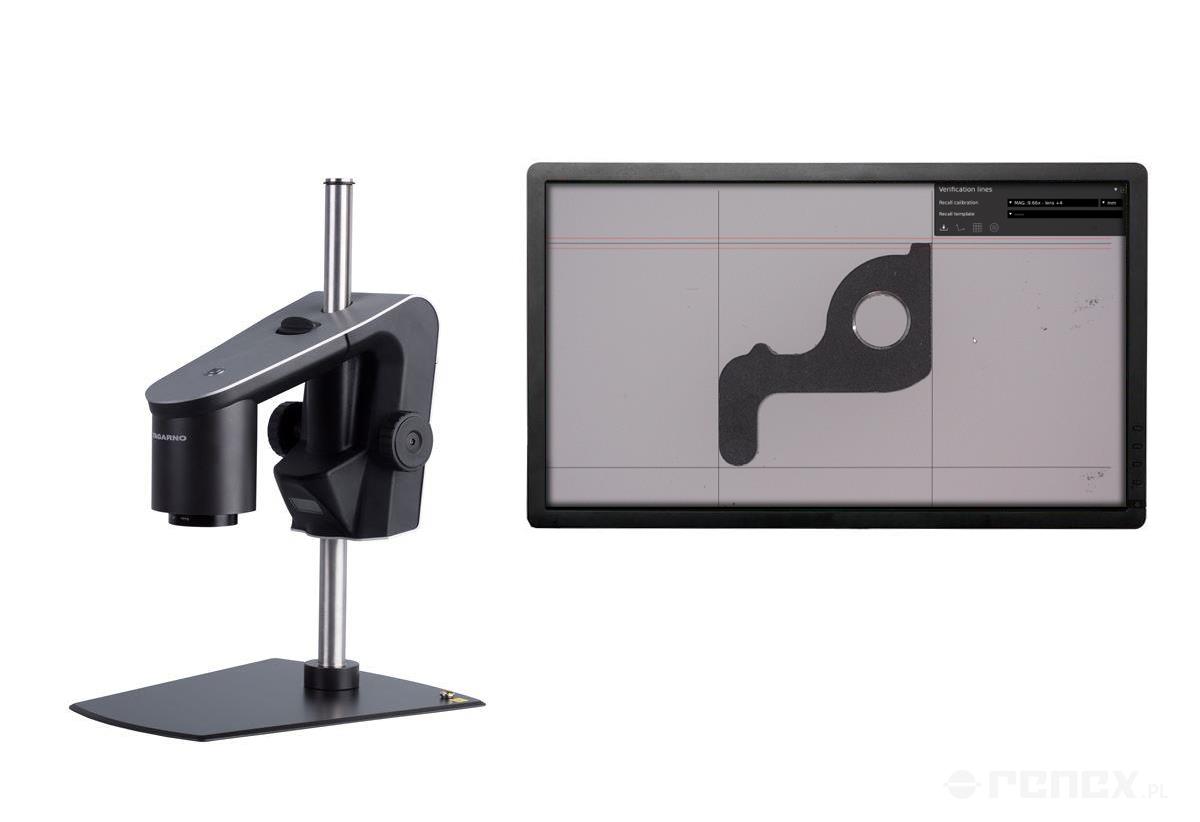
With the TAGARNO MEASUREMENT app, operators can perform highly accurate measurements directly on the screen. In practice, the application achieves an accuracy of 0.003% thanks to on-site calibration capabilities. By comparison, factory-calibrated measurement applications often provide an accuracy of only 0.5–1%.
How does the MEASUREMENT APP work?
Before using one of the many measurement tools, operators must calibrate the application at the required magnification level or select one of the saved calibrations. The operator can then perform the measurement, add annotations describing the issue, and save the image for documentation purposes or for sharing with supply chain partners.
If needed, operators can return to saved images and repeat the measurement, or use the measurement itself as a grid overlay on future samples to improve process efficiency.
MEASUREMENT APP software features
Selecting the measurement type – once calibrated, accurate measurements can be performed using the measurement software. The application allows the user to choose between point-to-point measurement, polyline, diameter, angle, area and other measurement types.
Adding notes – after completing a measurement, the application allows the user to add an arrow or note using the text box tool to explain why the measurement was taken.
Improved visibility – the software allows users to increase text size and line width, as well as change the colours of measurements and text fields. This ensures that measurements and notes stand out clearly against the product background.
Saving and sharing – once measurements are complete, the image can be saved via the application menu or the microscope control panel. The file can then be easily shared with co-workers or supply chain partners.
TAGARNO DXF OVERLAY software
The final application on this list is the DXF OVERLAY APP, developed to make it easy to identify even the smallest PCB components during rework.
How does the DXF OVERLAY app work?
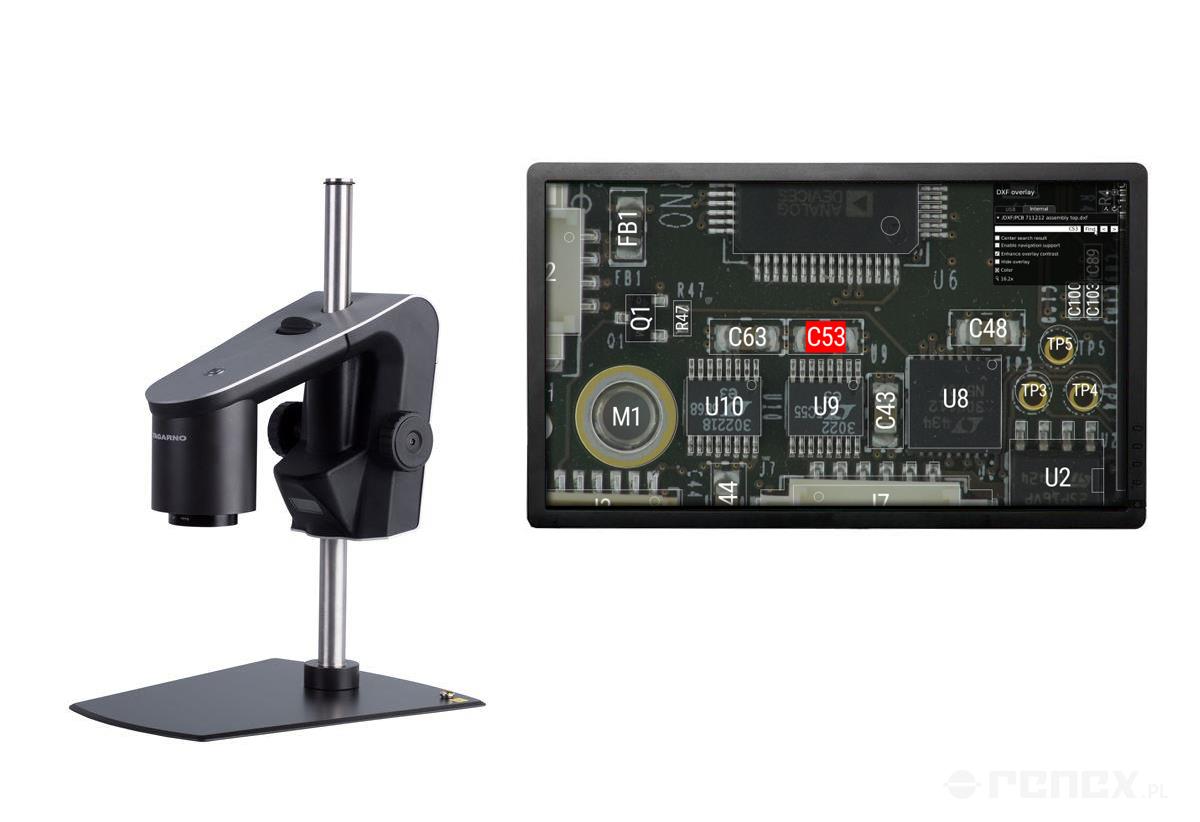
When the sample is placed under the microscope, the matching DXF file appears as a heads-up display over the live microscope image. The DXF file outlines all components on the PCB and clearly labels them by name. This not only makes it easier to identify differences between the DXF file and the actual PCB, such as missing components, but also allows operators to search for specific components by entering the component name into the application’s search bar. The search result is highlighted, enabling the operator to locate the component quickly.
This application is particularly useful in production environments when a randomly selected sample needs to be checked or when a printed circuit board has been identified as defective and a specific component requires repair. The application identifies the component for the user, eliminating time lost on locating miniature PCB parts.
DXF OVERLAY software features
Find components using the search bar – enter the component name into the search bar. All matching results will be highlighted on the monitor for quick identification.
Zoom in and out with the DXF file enabled – when zooming in or out, the DXF file scales together with the PCB under the digital microscope and adjusts to its size.
Show or hide parts of the DXF file – if the DXF file contains more than one layer, each layer can be shown or hidden individually.
Adjust layer colours – to ensure the DXF file remains as visible as possible, one of 24 colours can be selected for each individual layer.
Include rework instructions – the content of the DXF file is entirely up to the user. If a given batch of printed circuit boards requires the same rework procedure, an additional layer with rework instructions can be added.
Create as many DXF files as needed – there is no limit to the number of DXF files the application can store. Create as many as required. We recommend using QCAD Professional, a highly affordable CAD software solution.